Google WiFi setup issues and how to solve them should be the first thing you should strive to learn if you want to enjoy its service.
Just like any other network service, you are likely to meet issues along the way.
Depending on the issue, it can be very hard to troubleshoot as some can be complicated.
Thankfully, we are here to help. We offer tips that will make the whole process a breeze, even if you are not a DIY enthusiast.
Several factors can lead to setup issues in Google WiFi. You cannot pinpoint each of them because they can arise from anywhere.
From the Ethernet cable you are using to the Google Home app can all bear the blame.
Google WiFi can help you identify issues with your device, suggest a potential solution, and show you the ones already solved. Google WiFi can identify issues like:
You don’t have to wait for the error messages to appear to know whether your Google WiFi device has an issue.
You can easily know this by observing the LED light status.
Google WiFi point flashing orange and Google WiFi blinking red or indicating solid red implies an issue with your system.
Here is a summary of what the LED lights mean.
| Status LED | Indication |
| No Light | No Power or Light Dimmed in the App |
| Google WiFi Flashing Orange | Network Issue |
| Solid Red/ Google WiFi Blinking Red | Critical or Hardware Issues |
| Solid Blue/Yellow | Undergoing a Factory Reset |
| Solid White/ Pulsing White/ Pulsing Blue | Ready for Set Up |
| Slow Pulsing Yellow | Network Issue |
That said, the light status can show you if there is an issue with your Google WiFi, including if it is just a power issue, network issue, or critical issue.
In addition, it can guide you during setup and factory reset.
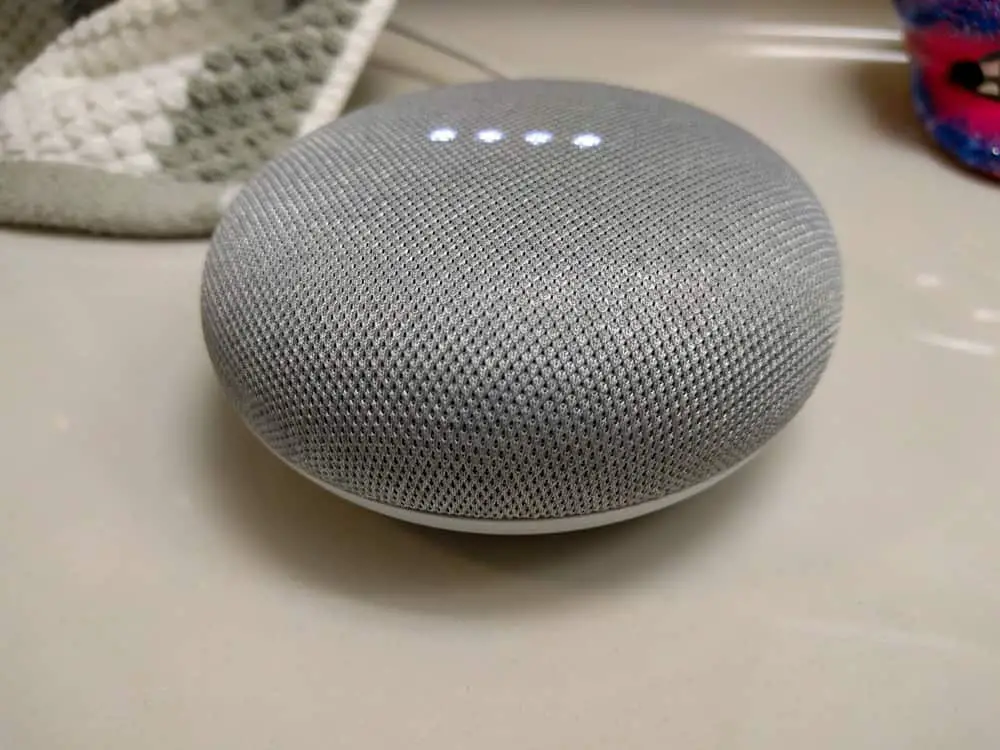
A smart speaker on a counter with LED light activated
Though we mentioned that Google WiFi can help you identify issues and suggest potential solutions, not all the solutions suggested will work.
That said, here are some tips that can help you troubleshoot most Google WiFi issues.
Before you think of any critical issue, just check the cables and ensure they are properly connected.
During setup, an improperly connected Ethernet cable can trigger a slow pulsing yellow light or a pop-up error message.
In addition to the improper cable connection, the blame can also go to the condition and the type of cable you choose.
We usually use Ethernet cables for internet connections, but they undergo generational upgrades over time.
Therefore, not all Ethernet cables are the same. The most recommended types currently for modern-day networking are CAT 5, 5e, and CAT6.
Your Google WiFi system features two Ethernet ports. One is for Wide-Area Network (WAN), while the other is for Local-Area Network (LAN).
The cable from your modem will connect to the WAN port ( the one with the Globe Internet logo at the top).
Ensure you fit the cable firmly by gently pushing it until you hear a click.
If it clicks well but there is still an error, check the condition of the cable by running a thorough test on corrosion, wear and tear, kinks, crooks and chaffs.
If you observe any of these signs, consider replacing the cable.
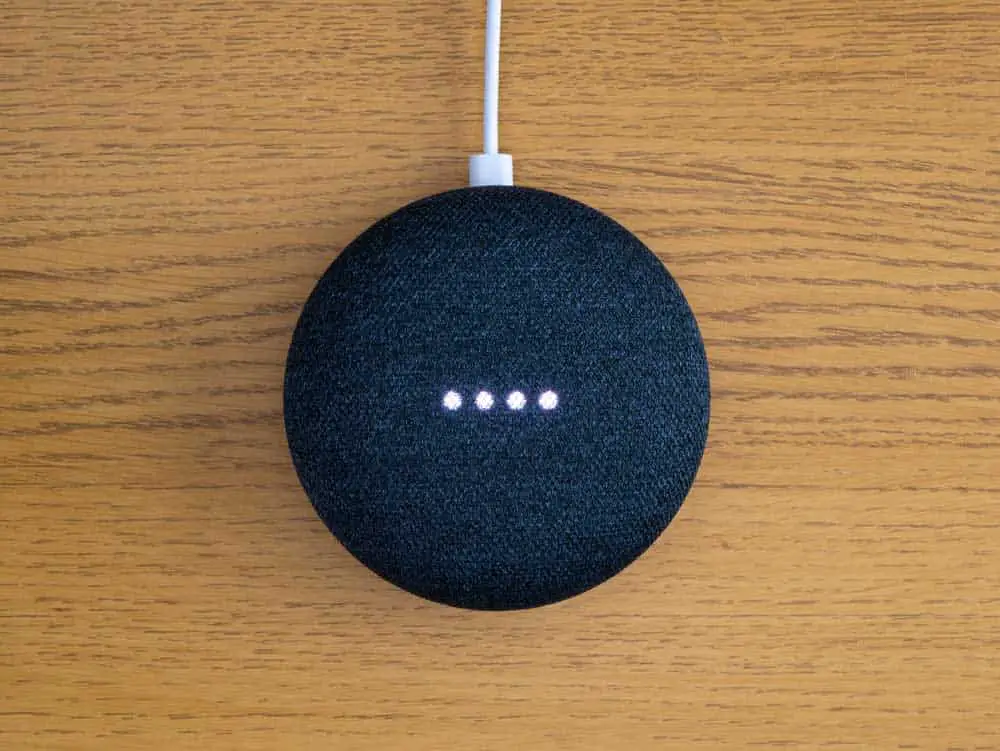
The smart home voice on the table activated
If the problem is not in the cables, before you go to complicated troubleshooting, you should try power cycling the Google WiFi.
Power cycling the device will refresh it, clearing off the bugs that might have entered it, thereby causing errors.
Bugs can find their way into the system due to, but not limited to, faulty updates or simply lack of the device update.
Power cycling also protects the system from pile-up static charges. Here is how to power cycle the system.
Unplug the cable from the socket and allow it to stay disconnected for some seconds. In the meantime, press the power button and hold it for a few seconds.
You can repeat it several times, then plug back the power cable. Check if the issue is solved.
Restarting your modem or router can also fix some of the issues you may encounter with your Google WiFi system.
So if power cycling the Google Wifi never solves the problem, the next thing to consider is restarting the modem or router.
Disconnect the ethernet and power cable from the modem and wait 2-3 minutes for the modem to go off completely.
Ensure all the lights are off, then reconnect the cables (the Ethernet and the power cable) back. Wait for the indicator lights to turn solid and check if the issue is resolved.
Your Google Home app is equally prone to bugs and errors like your Google WiFi router/modem.
If you have trouble pairing the Home app with Google WiFi, you should consider updating the app.
You should always keep the app updated whenever an update is made available. You don’t have to wait to experience issues.
If the tips we have given don’t help, you may consider factory resetting as your last resort.
Issues that lead to solid LED red lights may end up this far.
When you factory reset the system, refresh it and revert to its new condition.
To factory reset the device, follow these steps:
The device comes with a Reset button located towards the back.
Press and hold it while the power is on until you see a solid yellow or blue – which means it is undergoing a factory reset.
Wait until the light changes to pulsing white, which means it is ready for set up. All this process can take only around 2-10 minutes.
Several issues can lead to your Google WiFi not working. Depending on the issue in question, we have offered some tips that may help you solve the problem.
If any of our tips don’t work, contact the company support team.


